Can I do quarterly and end of year transmissions from different packages ?
Yes, our software will pick up from the HMRC information sent from elsewhere.
Do I need to register with HMRC ? See https://www.gov.uk/guidance/sign-up-your-business-for-making-tax-digital-for-income-tax
There is a video here showing the software getting started. getting started video
and one here about the spreadsheet format spreadsheet format video
we have had some reports of HMRC not allowing log ins usimg the same credentials from multiple machines at the same time.
If you have accidentally logged in with the wrong account go to the advanced tab and choose logout. Then go back to the obligations tab.
The first time you use your agent services account with MTD you may be asked to do an identity check. This is an identity check for you as an agent, not the tax payers identity.
if the business is shown but the first period is missing please pdate the software -- see below for instructions.
If some business are listed but not others - for example self employment is listed but not property for a particular NINO, then this is an issue with the HMRC records and you will need to speak to them.
After installing the software from [MTD and books](https://www.forbes.co.uk/install/books.exe) because it is running in a web browser you will need to refresh. This is normally done by right clicking and choosing reload/refresh. You can check the About button on the front page or under help to see the version you are running.
Make sure you have paid for MTD for income tax and received an unlock code. In licence manager MTD for Income tax should be listed.
Under the advanced tab make sure the tax year is set to 2026-27
Under the advanced tab make sure it is set to live server Video - starting the software
Always start on the tax obligations screen
Each quarter each business needs to be transmitted separately.
Figures are cumulative so the start date is always the 6th April.
For example if you are fulfilling your obligation for the 3rd quarter it is the totals for 9 months of transactions.
Go to the help tab in the bridge software
or Spreadsheets
NOTE: the HMRC tags for dates are different in self employment and property spread sheets.
In the mtd software go to the help tab and choose spreadsheet tags. To make sure you have the latest information see installing and updating the software. Please note, if you are using the consoldidatedExpenses (FSE31,SSE20) then this must contain a total of all expenses and you do not use any of the other expense items. This is allowed if the income is below the small turnover limit.
The actual tags are the names so for example we list Turnover or FSE15 or SSE9. If you use FSE15 or SSE9 we will just change that to the word Turnover on transmission. You will see this on the continue screen.
Also be wary of duplicate tags. For example if you have FSE15 10000 on your spreadsheet and somewhere else FSE15 as a label on a column there is no certainty as to which will be picked up. Make sure FSE15 only appears once (even on separate sheets in the same data file).
see rounding below
You can complete year end data such as capital allowances through the business tab. There is no requirement to import this from digital records. Go to the business in question then choose Year End then Edit .
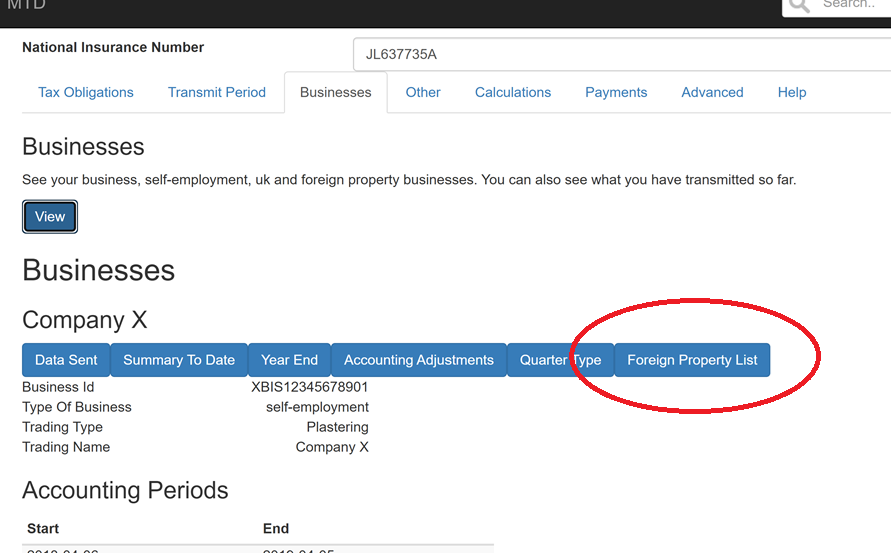
There have been some changes regarding foreign properties. Each foreign property business must list its properties even if there is only one. First update the software -- see updating and installing above. Please read ALL the steps required to update.
After updating go to the businesses tab and choose view. There will be an extra button Foreign Property List.Clicking on this will list the properties (it will be empty to start with) and then you can add to it. You must give a country code and a name to each property. After adding, on the list you should see a long sequence of letters and numbers called a propertyId. You will need to copy the propertyId(s) into your spreadsheet.
There is an updated example spreadsheet with some guidance.
If you use clientbase we have added some facilities but first you will need to update your data file. Go yo the File menu and choose Update schema. Under the personal button for each client you will find an MTD tick box. The tick will only be retained once you have updated the database as described.
For clients that you tick MTD, in the dates box for deadlines you will see some boxes for MTD related deadlines. Furthermore when you press the tax button it will ask you if you want SA100 or MTD.
You can go to the calculations tab and run an in year calculation at any time.
After you have completed the year end data for any business and any other income such as capital gains the you can do an intent to finalise calculation
Use the other income tab to complete other income such as capital gains and foreign
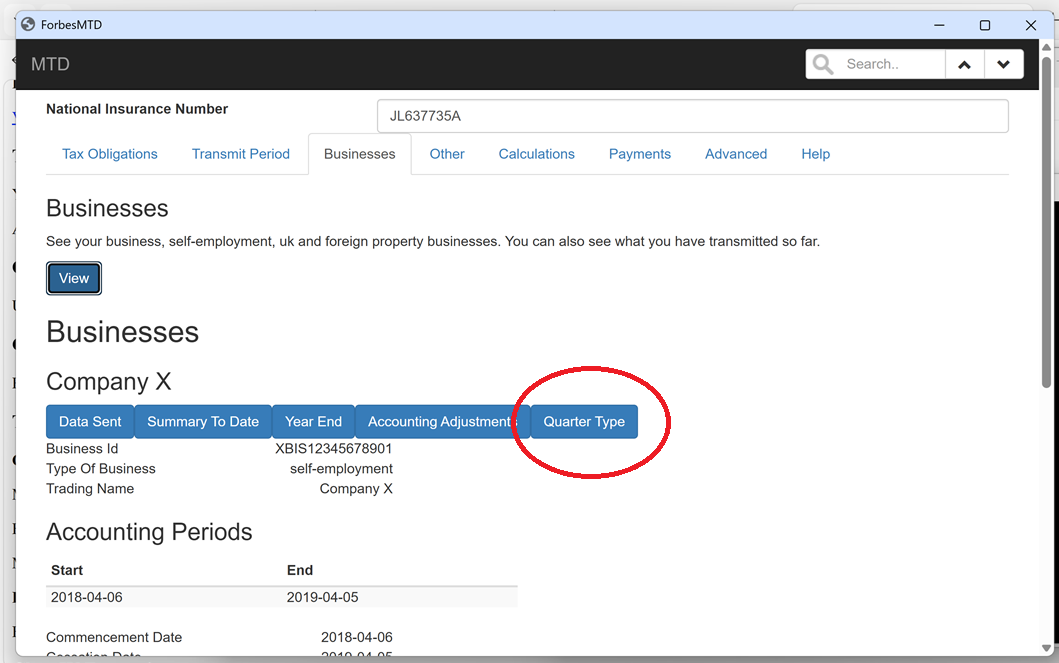
By default dates run with tax month from 6th April. Under business tab, before you have made any transmissions in a particular year you can change from standard to calendar. You may need to update the software - read all steps in installing and updating above.
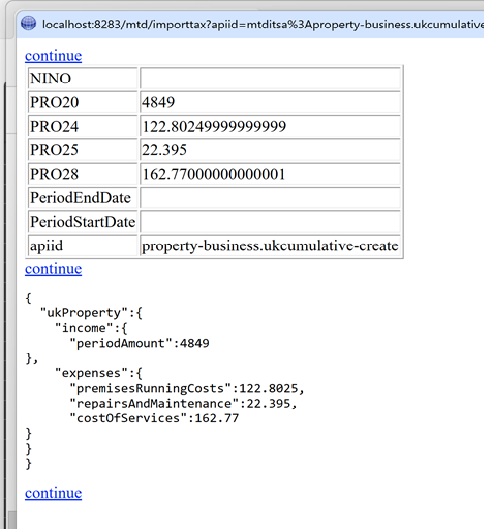
Figures in the excel must have at most 2 decimal places. Simply changing the display option to only display 2 in excel is not sufficient. You will need to use =round(...,2) formula in your excel.
The image below shows a problem with rounding at the continue screen.
Error status:0
This means there has been a temporary problem with your internet connection. Wait a minute, try again.If not sorted restart program or restart computer.
MATCHING_RESOURCE_NOT_FOUND
See checking tax year above and check period dates match obligations
CLIENT_OR_AGENT_NOT_AUTHORISED
Make sure under advanced that you have selected live or test appropriately
For live make sure that you are using your ASA (Agent services account) and not some other gateway account (e.g. self assessment)
Make sure the nino is correct
Make sure the client is listed on your ASA and shows MTD
Make sure the client is enrolled for MTD. You may have to wait up to 48 hours after enrolling.
RULE_START_DATE_NOT_ALIGNED_WITH_REPORTING_TYPE
Figures are cumulative. Make sure the start date is the start of April. See also calendar or standard above
FORMAT_VALUE
On the continue screen make sure the value looks correct with no extra characters or extra decmal places. See rounding above.
RULE_BOTH_EXPENSES_SUPPLIED
The tag consolidatedExpenses can be used for total expenses if the annual turnover is less approx. 90000. It must not be present (even with 0 as the value) if you use any other expense tags (even with 0 as the value).
Please see year end adjustments above. In the year end / edit scroll to the bottom and select a class IV exemption reason.
Under the advanced tab make sure it is set to test server
You can create your own test user under the advanced tab or use
| userid | 483169335086 |
| password | B1x3He9F89eS |
| NINO | JL637735A |